A community-maintained fork of roots/trellis-cli that adds native WSL2 virtual machine support for Windows.


When Trellis dropped Vagrant support in v1.15.0, Windows developers lost their local development path. The upstream CLI now uses Lima (macOS/Linux only) for trellis vm commands. This fork adds a wsl backend that manages WSL2 distros via wsl.exe, giving Windows developers a first-class Trellis development experience.
This work was proposed upstream and reviewed by the Roots team. They decided the approach didn't fit the project's architectural direction — a fair call. I maintain this fork for my team and share it publicly for any Windows Trellis users who need it.
Maintained by: @qwatts-dev — one developer, used daily in production with my team. If you run into issues, please open an issue. Bug reports and feedback help improve this for everyone.
-
Download
trellis.exeandtrellis-linuxfrom the latest release. -
Place both files in a folder, e.g.,
C:\trellis-wsl\. -
Add that folder to your Windows PATH so you can run
trellisfrom any terminal:# Run this once in PowerShell (no admin required): $userPath = [Environment]::GetEnvironmentVariable("Path", "User") [Environment]::SetEnvironmentVariable("Path", $userPath + ";C:\trellis-wsl", "User")
Then restart your terminal. You should now be able to run:
trellis --version
Already have the official trellis-cli installed? If you installed the upstream version via Scoop, Homebrew, or another method, either uninstall it first or invoke this fork by its full path (e.g.,
C:\trellis-wsl\trellis.exe vm start) to avoid conflicts. Windows uses whichevertrellis.exeappears first in PATH.
Both files are required:
trellis.exe— runs on Windows, manages WSL distrostrellis-linux— cross-compiled Linux binary, automatically deployed into each WSL distro during bootstrap
Download the latest trellis.exe and trellis-linux from releases and replace the files in your install folder (e.g., C:\trellis-wsl\). Existing WSL distros will pick up the new Linux binary on next vm start.
-
Delete your WSL distros first (if desired):
trellis vm delete # run from each project directory -
Delete the install folder:
Remove-Item -Recurse -Force C:\trellis-wsl
-
Remove it from your PATH:
$userPath = [Environment]::GetEnvironmentVariable("Path", "User")
[Environment]::SetEnvironmentVariable("Path", ($userPath -split ";" | Where-Object { $_ -ne "C:\trellis-wsl" }) -join ";", "User")
-
Restart your terminal.
Windows developers can run trellis vm start to get a fully provisioned Trellis development environment powered by WSL2. Each project gets its own isolated Ubuntu distro with nginx, PHP-FPM, MariaDB, and all Trellis services — no manual WSL setup required.
- Windows 11 with WSL2 enabled (
wsl --installif not already) - VS Code with the WSL extension
- This fork (
trellis.exe+trellis-linuxfrom releases)
Important: Project files live on WSL2's native ext4 filesystem for performance. You must use an editor that supports WSL remote development. VS Code with the WSL extension is the recommended (and automated) path. JetBrains IDEs also support WSL remoting but are not automated by
vm open.
# Create a new Trellis project (from PowerShell)
trellis new mysite.com

# Start the VM (imports Ubuntu, bootstraps Ansible, provisions everything)
cd mysite.com
trellis vm start

# Open VS Code connected to the WSL distro
trellis vm open

# From the VS Code integrated terminal (inside WSL):
trellis provision development    # Re-provision
trellis db open --app=tableplus # Open database in TablePlusImportant for Windows developers: The development workflow differs slightly from macOS/Lima. On macOS, project files live on a shared filesystem, so dependency installs (composer, yarn) and frontend build tools run on the host. On WSL2, project files live on the distro's native ext4 filesystem for performance. All dependency installs and build commands should be run inside the WSL terminal (via
trellis vm openortrellis vm shell).
After vm start and vm open, run your project's setup steps from the VS Code integrated terminal:
# Example: typical Bedrock + Sage project
cd site && composer install
cd web/app/themes/my-theme && composer install && yarn install
yarn dev   # Frontend asset watcher
Node.js LTS and Corepack (yarn/pnpm) are pre-installed in every WSL distro. You do not need Node.js on Windows for Trellis development. If your project requires additional CLI tools, you can install them directly in your WSL distro via trellis vm shell or the VS Code terminal.
New commands (WSL2 only):
| Command | Run From | Description |
|---|---|---|
vm open |
Windows | Opens VS Code connected to the WSL distro at the project root |
vm sync |
Windows | Manually syncs project files from WSL back to Windows |
vm trust |
Windows | Re-imports self-signed SSL certs into the Windows trust store |
Enhanced for WSL2 (existing commands with added Windows-specific behavior):
| Command | What Changed |
|---|---|
vm start |
WSL2 backend: imports Ubuntu distro, bootstraps to ext4, auto-stops other distros |
vm stop |
Auto SyncBack (rsync ext4 → Windows) before terminating the distro |
vm delete |
Cleans up Windows hosts file entries and SSL certs |
vm shell |
Routes to WSL distro; detects when run from wrong host |
db open |
Works from both Windows and WSL; uses direct mysql:// URI (no SSH tunnels) |
provision |
Detects Windows host and redirects to WSL terminal |
deploy |
Detects Windows host and redirects to WSL terminal |
vault * |
Detects Windows host and redirects to WSL terminal |
galaxy install |
Detects Windows host and redirects to WSL terminal |
xdebug-tunnel * |
Detects Windows host and redirects to WSL terminal |
-
vm startimports an Ubuntu rootfs into a dedicated WSL2 distro (e.g.,trellis-mysite-com), installs Python/Ansible, copies the project to ext4, runsansible-playbook dev.yml, tunes opcache, trusts SSL certs, and updates the Windows hosts file. -
Project files live on ext4 at
/home/admin/<project>/inside the distro. This gives native filesystem performance (~80ms page loads vs ~14 seconds with Windows filesystem mounts). Thesite/directory is bind-mounted to/srv/www/<site>/currentas Trellis expects. -
vm openlaunches VS Code with--folder-uri vscode-remote://wsl+<distro>/home/admin/<project>, connecting directly to the WSL distro. The developer sees the full project (trellis/ + site/ + .git/) and uses git normally from the VS Code terminal. -
vm stopruns an incremental rsync from WSL ext4 back to the Windows filesystem before stopping the distro, keeping the Windows-side repo up to date for GitHub Desktop or other Windows git tools. -
Smart command routing — Ansible-dependent commands (provision, deploy, vault, etc.) detect when you're on the Windows host and tell you to run them from the WSL terminal instead. VM management commands detect when you're inside WSL and redirect you to Windows.
- Ext4-native performance — ~80ms TTFB (vs ~14s with DrvFS/9p bind mounts)
- Automatic hosts file management — Adds/removes
*.testentries in the Windows hosts file (UAC elevation, only when entries change) - SSL certificate trust — Self-signed certs auto-imported into the Windows Trusted Root CA store (sites must have
ssl.enabled: trueinwordpress_sites.yml) - Bi-directional file sync — Auto sync on stop; manual
vm sync; config auto-sync on any Windows-side command - Database GUI support —
db open --app=tableplusworks from both Windows and WSL terminals, using directmysql://URIs (no SSH tunnels needed) - Cross-compiled Linux binary — Automatically deployed into distros so
trelliscommands work from the WSL terminal - Distro isolation — Each project gets its own WSL distro; multiple projects can run simultaneously
- Resilient lifecycle — Detects unprovisioned distros and auto-cleans; keepalive process prevents WSL idle shutdown
Windows Host                          WSL2 Distro (trellis-mysite-com)
─────────────                         ─────────────────────────────────
trellis vm start ──────────────────── wsl --import → bootstrap → provision
trellis vm open  ──────────────────── code --folder-uri vscode-remote://wsl+...
trellis vm stop  ── rsync ext4→Win ── wsl -t (terminate)
trellis vm trust ── certutil ───────── reads /etc/nginx/ssl/*.cert
trellis db open  ── rundll32 URI ───── ansible-playbook → JSON credentials

C:\Users\...\mysite.com\             /home/admin/mysite.com/
  trellis/  (config, read by Win)       trellis/  (config, used by Ansible)
  site/     (Windows backup)            site/     (ext4, served by nginx)
  .git/     (Windows backup)            .git/     (ext4, used by VS Code)
The WSL backend is auto-selected on Windows. You can explicitly set it in trellis.cli.yml:
vm:
  manager: "wsl"    # "auto" also works (selects wsl on Windows, lima on macOS)
ubuntu: "24.04" # Ubuntu version for the rootfs (22.04 or 24.04)| Aspect | Lima (macOS) | WSL2 (Windows) |
|---|---|---|
| VM technology | QEMU/Lima | WSL2 (Hyper-V) |
| Filesystem | virtiofs (FUSE) | ext4 native |
| Networking | Lima port forwarding | WSL2 NAT (automatic) |
| Editor requirement | Any (shared filesystem) | VS Code + WSL extension |
| SSH | Lima manages SSH keys | Not needed (local connection) |
| Ansible connection | local |
local |
- One project at a time — All WSL2 distros share a single network stack (by design), so services like MariaDB (3306), nginx (80/443), and openssh-server (22) conflict if multiple distros run simultaneously.
vm startautomatically stops othertrellis-*distros before starting yours, with an optional SyncBack prompt so you can sync unsaved work back to Windows first. Your data is safe — stopped distros resume exactly where they left off. - VS Code is required for editing project files (they live on WSL2 ext4, not the Windows filesystem)
- Windows-side files are a backup — the Windows copy is kept in sync by
vm stopandvm syncbut is not the source of truth during development - One UAC prompt per
vm start(for hosts file and SSL cert trust) — subsequent starts skip UAC if entries haven't changed
Everything below is from the upstream roots/trellis-cli. All upstream commands and configuration options apply to this fork as well.





A command-line interface (CLI) to manage Trellis projects via the trellis command. It includes:
- Smart autocompletion (based on your defined environments and sites)
- Automatic Virtualenv integration for easier dependency management
- Easy DigitalOcean droplet creation
- Better Ansible Vault support for encrypting files
Roots is an independent open source org, supported only by developers like you. Your sponsorship funds WP Packages and the entire Roots ecosystem, and keeps them independent. Support us by purchasing Radicle or sponsoring us on GitHub — sponsors get access to our private Discord.




brew install roots/tap/trellis-cli
brew update
brew upgrade trellis-cli# Cleanup previous versions (if installed)
brew uninstall roots/tap/trellis-cli
# Install
brew install --HEAD roots/tap/trellis-cli-dev
# Upgrade
brew upgrade --fetch-HEAD roots/tap/trellis-cli-devWe also offer a quick script version:
# You might need sudo before bash
curl -sL https://roots.io/trellis/cli/get | bash

# Turns on debug logging
curl -sL https://roots.io/trellis/cli/get | bash -s -- -d

# Sets bindir or installation directory, Defaults to '/usr/local/bin'
curl -sL https://roots.io/trellis/cli/get | bash -s -- -b /path/to/my/bintrellis-cli provides binary releases for a variety of OSes. These binary versions can be manually downloaded and installed.
- Download the latest release or any specific version
- Unpack it (
tar -zxvf trellis_1.0.0_Linux_x86_64.tar.gz) - Find the
trellisbinary in the unpacked directory, and move it to its desired destination (mv trellis_1.0.0_Darwin_x86_64/trellis /usr/local/bin/trellis) - Make sure the above path is in your
$PATH
trellis-cli does offer a native Windows exe but we recommend you use WSL for Trellis. The above install methods will work for WSL as well.
If you do want to use the native Windows exe, you'll need to do the following setup after downloading the Windows build:
- Open system properties
- Open environment variables
- Under system variables add new variable,
TRELLIS, pointing to the location of thetrellis.exefile, likeC:\trellis_1.0.0 - Edit path from system variables and add new named
%TRELLIS% - Save the changes
trellis-cli artifacts can be cryptographically verified via GitHub CLI.
$ gh attestation verify --repo roots/trellis-cli /path/to/trellis_Darwin_arm64.tar.gz

Loaded digest sha256:xxxxxxx for file://path/to/trellis_Darwin_arm64.tar.gz
Loaded 1 attestation from GitHub API

The following policy criteria will be enforced:
- Predicate type must match:................ https://slsa.dev/provenance/v1
- Source Repository Owner URI must match:... https://github.com/roots
- Source Repository URI must match:......... https://github.com/roots/trellis-cli
- Subject Alternative Name must match regex: (?i)^https://github.com/roots/trellis-cli/
- OIDC Issuer must match:................... https://token.actions.githubusercontent.com

✓ Verification succeeded!

The following 1 attestation matched the policy criteria

- Attestation #1
  - Build repo:..... roots/trellis-cli
  - Build workflow:. .github/workflows/release.yml@refs/tags/v0.0.1
  - Signer repo:.... roots/trellis-cli
- Signer workflow: .github/workflows/release.yml@refs/tags/v0.0.1Homebrew installs trellis-cli's shell completion automatically by default. If shell completions aren't working, or you installed manually not using Homebrew, you'll need to install the completions manually.
To use the trellis-cli's autocomplete via Homebrew's shell completion:
-
Follow Homebrew's install instructions https://docs.brew.sh/Shell-Completion
Note: For zsh, as the instructions mention, be sure compinit is autoloaded and called, either explicitly or via a framework like oh-my-zsh.
-
Then run:
brew reinstall trellis-cli
To install shell completions manually, run the following:
trellis --autocomplete-installIt should modify your .bash_profile, .zshrc or similar.
trellis-cli uses Virtualenv to manage dependencies such as Ansible which it automatically activates and uses when running any trellis command.
But there's still a lot of times you may want to run ansible-playbook or pip manually in your shell. To make this experience seamless, trellis-cli
offers shell integration which automatically activates the Virtualenv when you enter a Trellis project, and deactivates when you leave it.
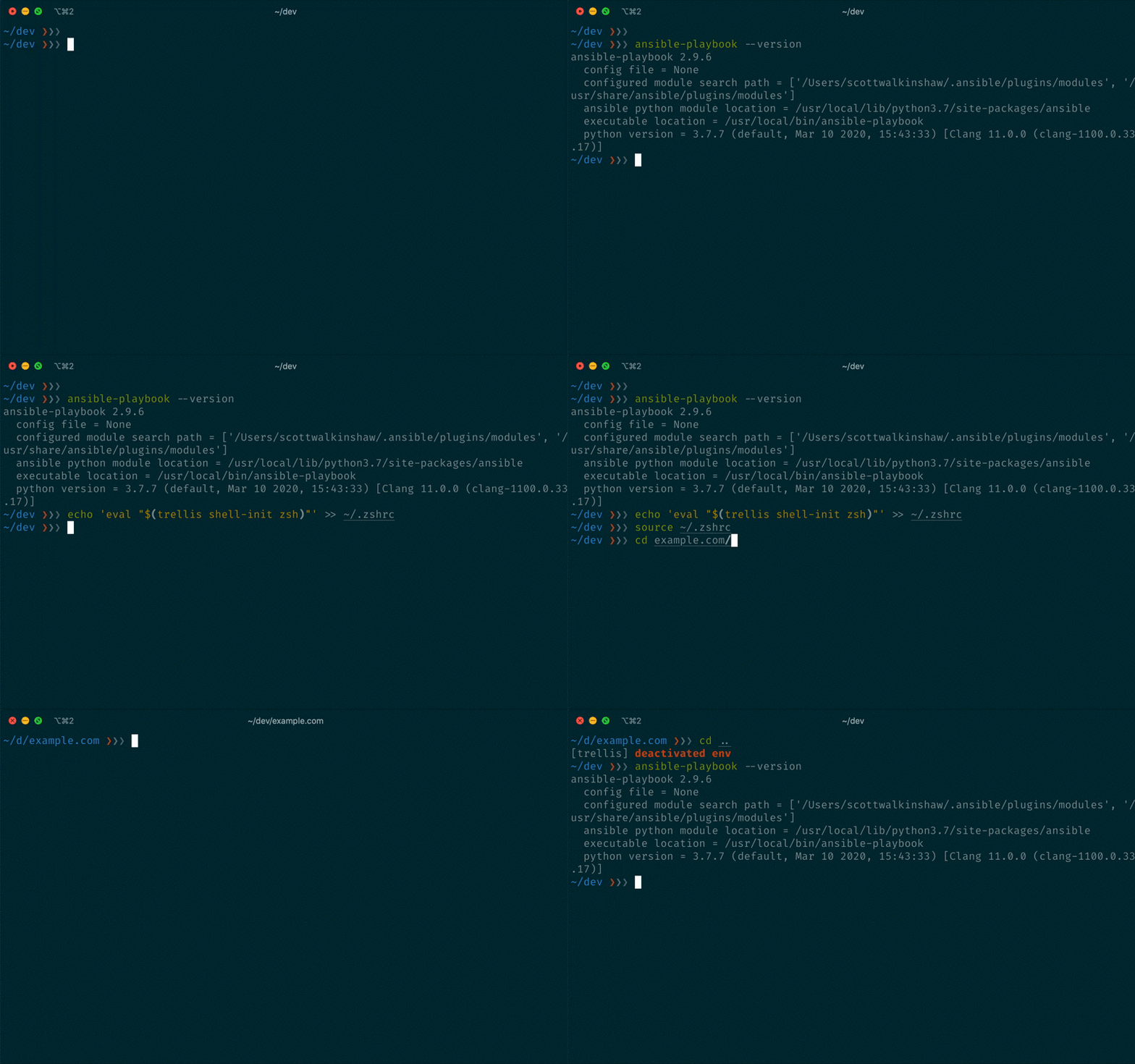
To enable this integration, add the following to your shell profile:
Bash (~/.bash_profile):
eval "$(trellis shell-init bash)"Zsh (~/.zshrc):
eval "$(trellis shell-init zsh)"Run trellis for the complete usage and help.
Supported commands so far:
| Command | Description |
|---|---|
alias |
Generate WP CLI aliases for remote environments |
check |
Checks if Trellis requirements are met |
db |
Commands for database management |
deploy |
Deploys a site to the specified environment |
dotenv |
Template .env files to local system |
droplet |
Commands for DigitalOcean Droplets |
exec |
Exec runs a command in the Trellis virtualenv |
galaxy |
Commands for Ansible Galaxy |
info |
Displays information about this Trellis project |
init |
Initializes an existing Trellis project |
key |
Commands for managing SSH keys |
logs |
Tails the Nginx log files |
new |
Creates a new Trellis project |
open |
Opens user-defined URLs (and more) which can act as shortcuts/bookmarks specific to your Trellis projects |
provision |
Provisions the specified environment |
rollback |
Rollsback the last deploy of the site on the specified environment |
ssh |
Connects to host via SSH |
valet |
Commands for Laravel Valet |
vault |
Commands for Ansible Vault |
vm |
Commands for local development virtual machines |
xdebug-tunnel |
Commands for managing Xdebug tunnels |
There are three ways to set configuration settings for trellis-cli and they are loaded in this order of precedence:
- global config (
$HOME/.config/trellis/cli.yml) - project config (
trellis.cli.yml) - project config local override (
trellis.cli.local.yml) - env variables
The global CLI config (defaults to $HOME/.config/trellis/cli.yml)
and will be loaded first (if it exists).
Next, if a project is detected, the project CLI config will be loaded if it
exists at trellis.cli.yml. A Git ignored local override config is also
supported at trellis.cli.local.yml.
Finally, env variables prefixed with TRELLIS_ will be used as
overrides if they match a supported configuration setting. The prefix will be
stripped and the rest is lowercased to determine the setting key.
Note: only string, numeric, and boolean values are supported when using environment variables.
Current supported settings:
| Setting | Description | Type | Default |
|---|---|---|---|
allow_development_deploys |
Whether to allows deploy to the development env |
boolean | false |
ask_vault_pass |
Set Ansible to always ask for the vault pass | boolean | false |
check_for_updates |
Whether to check for new versions of trellis-cli | boolean | true |
database_app |
Database app to use in db open (Options: tableplus, sequel-ace) |
string | none |
load_plugins |
Load external CLI plugins | boolean | true |
open |
List of name -> URL shortcuts | map[string]string | none |
virtualenv_integration |
Enable automated virtualenv integration | boolean | true |
vm |
Options for dev virtual machines | Object | see below |
| Setting | Description | Type | Default |
|---|---|---|---|
manager |
VM manager (Options: auto (depends on OS), lima, wsl) |
string | "auto" |
ubuntu |
Ubuntu OS version (Options: 22.04, 24.04) |
string | |
hosts_resolver |
VM hosts resolver (Options: hosts_file) |
string | |
instance_name |
Custom name for the VM instance | string | First site name alphabetically |
images |
Custom OS image | object | Set based on ubuntu version |
| Setting | Description | Type | Default |
|---|---|---|---|
location |
URL of Ubuntu image | string | none |
arch |
Architecture of image (eg: x86_64, aarch64) |
string | none |
Example config:
ask_vault_pass: false
check_for_updates: true
load_plugins: true
open:
  site: "https://mysite.com"
  admin: "https://mysite.com/wp/wp-admin"
virtualenv_integration: true
vm:
  manager: "lima"
  instance_name: "custom-instance-name"  # Optional: Set a specific VM instance name
Example env var usage:
TRELLIS_ASK_VAULT_PASS=true trellis provision productiontrellis-cli requires Go >= 1.18 (brew install go on macOS)
# Clone the repo
git clone https://github.com/roots/trellis-cli
cd trellis-cli

# Build the binary for your machine
go build

# Run tests (without integration tests)
go test -v -short ./...

# (Optional) Build the docker image for testing (requires `docker`)
make docker
# Alternatively, do not use cache when building the doccker image (requires `docker`)
make docker-no-cache

# Run all tests (requires `docker`)
make testThis section only intended for the maintainers
make docker-no-cache

# docker tag rootsdev/trellis-cli-dev:latest rootsdev/trellis-cli-dev:YYYY.MM.DD.N
# where N is a sequential integer, starting from 1.
docker tag rootsdev/trellis-cli-dev:latest rootsdev/trellis-cli-dev:2019.08.12.1

# docker push rootsdev/trellis-cli-dev:YYYY.MM.DD.N
docker push rootsdev/trellis-cli-dev:2019.08.12.1
docker push rootsdev/trellis-cli-dev:latestKeep track of development and community news.
- Join us on Discord by sponsoring us on GitHub
- Join us on Roots Discourse
- Follow @rootswp on Twitter
- Follow the Roots Blog
- Subscribe to the Roots Newsletter